
 Syeda Yasmeen
Marketing & Digital Business Writer
Syeda Yasmeen is a Marketing & Digital
Business Writer at MarketingInno with
5 years of writing experience. Her work
covers digital marketing, SEO, content
strategy, branding, social media, online
business, and emerging digital trends.
View Author Profile →
Syeda Yasmeen
Marketing & Digital Business Writer
Syeda Yasmeen is a Marketing & Digital
Business Writer at MarketingInno with
5 years of writing experience. Her work
covers digital marketing, SEO, content
strategy, branding, social media, online
business, and emerging digital trends.
View Author Profile →
 Sameena Begum
Health, Technology & Digital Content Reviewer
Sameena Begum is a health, technology,
and digital content reviewer who reviews
selected articles to help ensure that
information is presented clearly,
accurately, and responsibly.
View Reviewer Profile →
Sameena Begum
Health, Technology & Digital Content Reviewer
Sameena Begum is a health, technology,
and digital content reviewer who reviews
selected articles to help ensure that
information is presented clearly,
accurately, and responsibly.
View Reviewer Profile →
How to recall email in outlook can you imagine that there have been situations where you have pressed the Send button and realized that you have forgotten to attach something, the name of the recipient was written in the Recipients field incorrectly, or there were some mistakes in your email message? Such mistakes occur much more often than many people can imagine.
Microsoft Outlook can recall your already-sent email messages from the recipient’s mailbox. Nevertheless, there are situations when it is not possible to use the email recall functionality, which can be used only if both the sender and the recipient belong to the same organization and the latter has not read the message yet.
Recalling an email message does not imply the deletion of an email message from your Sent Items folder. It should be carried out by Outlook automatically through the deletion of the message from the recipient’s mailbox.
What is Recalling Email in Outlook?
Recalling email is the option that helps the user ask the system to delete a sent email message.
Depending on the version of Outlook and your account, you can:
- Delete unread copies of the email message
- Delete the original message and send its revised version
- Receive a report on whether the recall of the message was successful or not
For instance, you sent a proposal to your colleague but attached an outdated file. You can try to delete the original email message and send its revised version if the conditions for message recall are met.
It is necessary to note that email recall is meant to be used in specific Microsoft 365 and Exchange environments, not personal email accounts.
Email is often part of a larger business workflow, especially when teams are sending proposals and important documents to clients. Using proposal management software can help businesses organize proposals, streamline approvals, and reduce communication errors.
Is it Possible to Recall Any Email Message in Outlook?
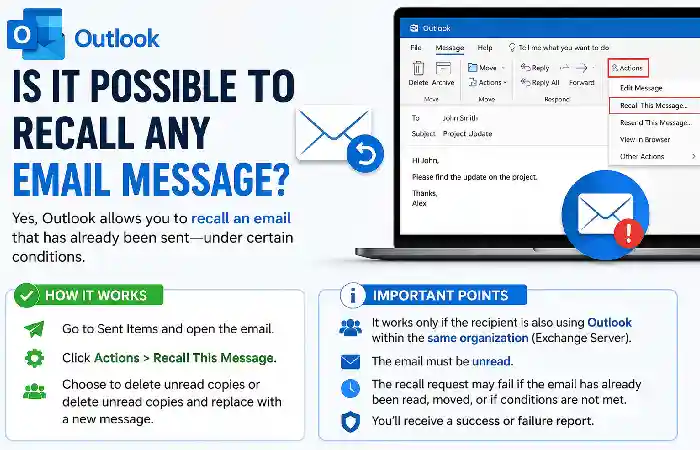
No, this is one of the most important facts to know before you try to recall an email.
Message recall usually works if the sender and the recipient use Microsoft 365 work or school accounts in the same organization and the latter did not open the message.
| Email situation | Recall availability |
| Microsoft 365 work account within the same organization | Usually available if requirements are met |
| Microsoft 365 school account within the same organization | Usually available if requirements are met |
| Personal Outlook.com account | Not available |
| Hotmail account | Not available |
| Gmail recipient | Not available through Outlook recall |
| Recipient has already opened the message. | Recall may fail |
| Different organizations | Generally not supported |
The personal accounts of Microsoft such as Outlook.com, Hotmail.com, Live.com and MSN.com do not have the functionality of message recall. You are supposed to use the feature called Undo Send wherever applicable.
Outlook is not the only platform businesses can use for professional email communication. Zimbra Mail is another business email and collaboration option that organizations may consider when evaluating their communication needs.
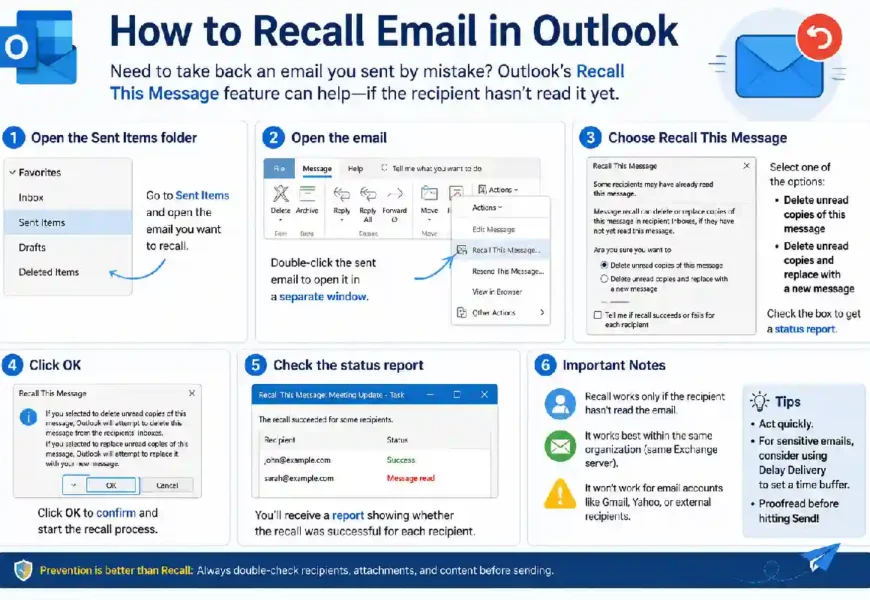
How to Recall an Email in New Outlook
If you are using the new version of Outlook for Windows or Outlook on the web for your work or school account, then here is what you have to do.
Step 1: Go to Sent Items
Start your Outlook client and then click Sent Items.
Now look for the message that you want to recall.
↓
Step 2: Open the Email
Double-click the email so that it opens in a separate tab.
Sometimes just selecting the message from the list may not give you the ability to recall.
↓
Step 3: Click Recall Message
Look for Recall Message in the message.
Click it and then confirm the recall action.
According to the latest instructions from Microsoft for new Outlook, you should receive a Message Recall Report immediately. This report tells you about the status of the message recall, whether successful or not.
↓
Step 4: View Message Recall Report
This report is helpful because clicking the recall button does not mean that the message has been recalled.
All of this depends upon the mailbox of the recipient and whether the message has been read or not.
Email mistakes can be especially inconvenient for businesses that manage frequent client and tenant communications. For property professionals, platforms such as AppFolio property management can help organize broader property-related workflows and communications.
How to Recall an Email in Classic Outlook
For classic Outlook for Windows, the menu structure is different.
Initially, you have to open Sent Items and then double-click the message that you want to recall.
From the ribbon interface, you have to navigate to:
Message → Actions → Recall This Message
Or, if your ribbon interface is simplified, then you have to click the three-dot menu first and then navigate to Actions → Recall This Message
Then you will see the following options:
- Delete unread copies of this message
- Delete unread copies and replace with a new message
Choose any one of the actions and confirm.
For replacement, you can edit and then send the message from Outlook.
Microsoft also advises that whenever you are using the classic Outlook procedure, you should always choose the option of getting the report for the recall status of each recipient.
Careful email communication is also important when handling sensitive business processes such as employee administration and payroll. Effective payroll management helps businesses keep employee information, payments, and related processes organized.
How to Recall and Replace an Email
At times, it becomes necessary to delete the email.
For instance, you sent the client an email containing incorrect pricing details, missing attachments, or outdated information. In such cases, you need to replace the email with the corrected one.
Classic Outlook Steps:
- Open Sent Items.
- Open the sent email.
- Select Recall This Message.
- Choose Delete unread copies and replace with a new message.
- Select OK.
- Edit the email.
- Enter the correct information/attachment.
- Send the email as a replacement.
It should be understood that the above steps will allow sending a replacement email only under certain conditions of recall. It does not imply forcing the correction into the recipient’s mailbox.
If you need a quick refresher on the process, this guide explains how to recall an email in Outlook step by step.
Determining Whether the Recall Succeeded
Outlook can send you a Message Recall Report once you request it.
The report may include the following:
- The status of recall
- Whether it succeeded
- Failed
- Pending
Microsoft claims that recall status becomes available relatively quickly. Nevertheless, the processing may take longer in some cases due to certain circumstances and the number of recipients.
This explains the importance of checking the report after requesting a recall.
What Makes Outlook Email Recall Fail?
There are many factors leading to failure in recall.
The Recipient Already Opened the Email
This is the crucial limitation of the feature.
If the recipient already opened the email, then Outlook cannot recall it.
The Recipient Is Outside the Organization
The recall function is aimed at use in Microsoft 365 or Exchange accounts within the same organization.
Emails sent from the corporate Outlook account to an outside Gmail mailbox cannot be recalled.
You Use a Personal Outlook
Personal emails from Outlook.com, Hotmail, Live, and MSN accounts are not allowed to recall messages.
Your Organization Does Not Support the Feature
The absence of the recall button means that your account does not support this feature. In addition, Microsoft mentions the lack of support for some other account types, including MAPI and POP.
Special Conditions of Message Protection
Some emails have special protection which makes them impossible to recall. Microsoft specifically mentions the impossibility of recalling messages with Azure Information Protection.
Reducing manual work can also help prevent mistakes when communicating with clients. Businesses can explore proposal automation software for business strategy to streamline proposal creation, approval, and delivery processes.
What If You Cannot Recall the Email?
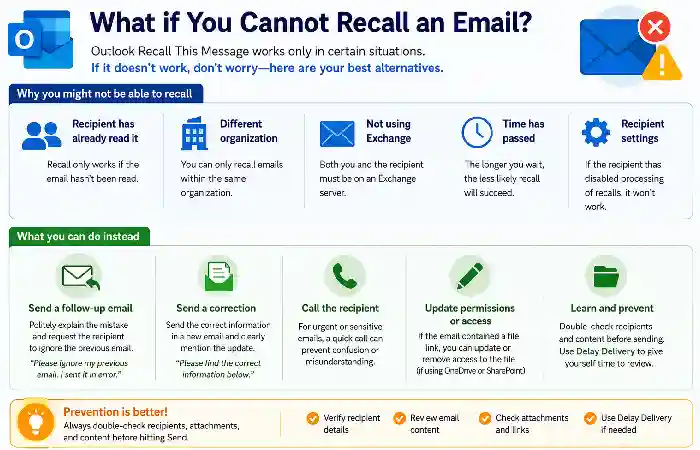
Some situations are those where you cannot avoid doing something.
If the email is sent to an external address or if it has already been read by the receiver, there is not much you can do.
The best thing to do would be to make a quick correction.
Here is an example of such a correction:
Please disregard my previous email. It seems that there has been an error in the data I sent. Here is the correct one.
In case you happen to forget to attach a file, you can send another email with the attachment, saying that you forgot it in the earlier email.
That is all the explanation that you will require.
Recall and Undo Send in Outlook
People often get confused between Recall and Undo Send features.
These two features are not similar at all.
Recall is a feature that allows you to retrieve the message after sending it and requires specific accounts and recipients.
On the other hand, Undo Send will give you a chance to stop sending a message before it goes into the recipient’s mailbox.
Outlook.com users can configure 5- and 10-second delays in their Undo Send feature.
| Feature | Recall | Undo Send |
| Works after message is sent. | Yes, when supported | No; delays sending |
| Main purpose | Retrieve an eligible sent message | Cancel before sending |
| Personal Outlook.com | No | Yes |
| Requires compatible organization | Yes | Not in the same way |
| Can replace an email | In supported cases | You edit before sending |
For routine errors, an Undo Send pop-up could prove helpful because it allows for quick fixes before the email leaves the account.
Can You Recall an Email From Outlook Mobile?
This is one more frequently occurring issue.
According to Microsoft, the Outlook mobile application does not have an option to undo and recall the sent email.
Thus, if you are sending an email using the app and then immediately regret it, there is no recall function available on the phone as there is on the computer.
In case the email is really important, you may need to look into the option of using a supported Outlook desktop or web interface related to your organizational or school account.
How to Avoid Email Recall at All
Recalling an email is great; however, preventing errors is much better.
Before sending an important email, check:
| Check | What to look for |
| Recipient | Is the correct person selected? |
| Subject | Does it describe the email accurately? |
| Attachment | Did you attach the intended file? |
| Content | Are names, dates, and numbers correct? |
| Links | Do important links work? |
| Tone | Is the message appropriate for the recipient? |
| CC/BCC | Are the right people included? |
A quick review can prevent many common email mistakes.
If you constantly send emails hastily, think about typing the letter first and adding addresses only after reading it.
Conclusion
Learning how to recall an email in Outlook is essential for cases of mistakes; however, one must keep the limitations of the feature in mind.
It is mostly designed for use in compatible Microsoft 365 or Exchange systems, especially if the sender and recipient are from the same organization and the recipient has not yet opened the email. Personal Outlook.com accounts and outside recipients cannot be recalled through message recall.
In case the recall function is not an option, do not worry. Writing a small correcting email is usually enough. Additionally, using an Undo Send delay, looking at the attachments, verifying recipients’ addresses, and taking a few moments to read the letter will help avoid many mistakes in the future.
Syeda Yasmeen is a Marketing & Digital Business Writer at MarketingInno with 5 years of writing experience. She covers digital marketing, SEO, content strategy, branding, social media, online business, and emerging digital trends.
View Author Profile →
Sameena Begum is a health, technology, and digital content reviewer who reviews selected articles to help ensure that information is presented clearly, accurately, and responsibly.
View Reviewer Profile →