 Syeda Yasmeen
Marketing & Digital Business Writer
Syeda Yasmeen is a Marketing & Digital
Business Writer at MarketingInno with
5 years of writing experience. Her work
covers digital marketing, SEO, content
strategy, branding, social media, online
business, and emerging digital trends.
View Author Profile →
Syeda Yasmeen
Marketing & Digital Business Writer
Syeda Yasmeen is a Marketing & Digital
Business Writer at MarketingInno with
5 years of writing experience. Her work
covers digital marketing, SEO, content
strategy, branding, social media, online
business, and emerging digital trends.
View Author Profile →
 Sameena Begum
Health, Technology & Digital Content Reviewer
Sameena Begum is a health, technology,
and digital content reviewer who reviews
selected articles to help ensure that
information is presented clearly,
accurately, and responsibly.
View Reviewer Profile →
Sameena Begum
Health, Technology & Digital Content Reviewer
Sameena Begum is a health, technology,
and digital content reviewer who reviews
selected articles to help ensure that
information is presented clearly,
accurately, and responsibly.
View Reviewer Profile →
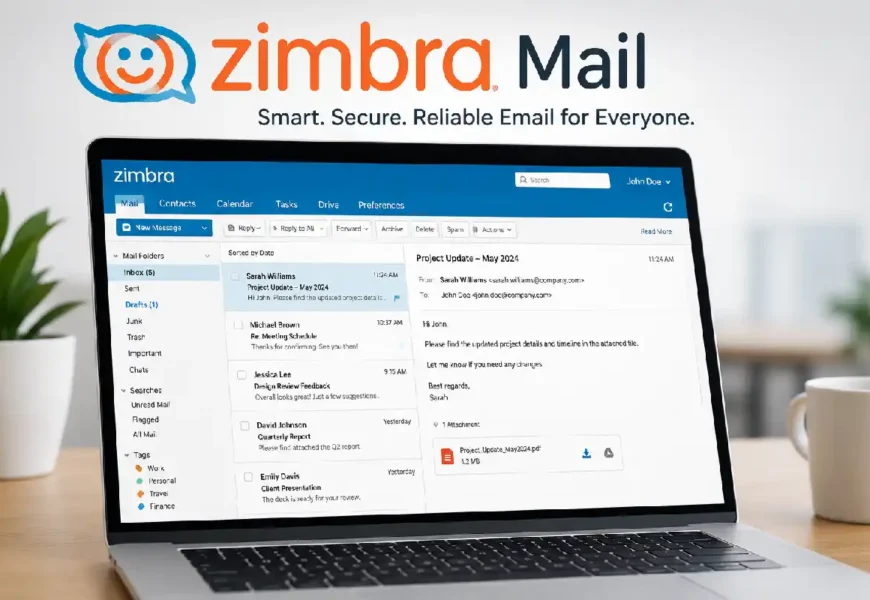
Despite the emergence of different types of messaging tools, email is still seen as one of the key ways to communicate in the office, universities, and governments. As long as you are familiar with services such as Gmail and Microsoft Outlook, there is another email service, Zimbra Mail, that has become very popular in businesses due to some unique features.
It provides an opportunity to use email, calendar, contact list, task list, file sharing, and collaboration all in one system. Regardless of whether it is a small company or thousands of users, Zimbra Mail is suitable for any case, and it offers not only a cloud solution but also an on-site one.
What Is Zimbra Mail?
Zimbra Mail is an email and teamwork service, offering web-based email solutions with calendars, contact lists, tasks, and file-sharing capabilities.
Email is often an important part of managing proposals and communicating with clients. Businesses can also use proposal management software to organize proposal workflows, improve collaboration, and keep important documents easier to manage.
Zimbra Mail is an enterprise email and collaboration platform that provides:
- Business email
- Shared calendars
- Contacts
- Task management
- File sharing
- Video meeting integration
- Team collaboration
- Mobile synchronization.
Setting Up Zimbra Mail on Desktop and Mobile Devices
Configuring Zimbra mail on desktop and mobile applications is a straightforward process using IMAP, POP3, or Exchange ActiveSync configurations provided by your organization or email administrator. The benefit will be the seamless accessibility of emails, calendars, and contacts on several devices.
| Device Type | Setup Method | Main Benefit |
| Desktop Computer | Email clients such as Outlook or Thunderbird | Full-featured email management |
| Android Device | Zimbra Mobile App or built-in Mail app | Access emails on the go |
| iPhone/iPad | Apple Mail using IMAP or Exchange settings | Seamless synchronization |
| Web Browser | Zimbra Webmail portal | No installation required |
Businesses in the property sector may need tools that go beyond email communication. Platforms such as AppFolio property management can help organize property-related operations, communication, and administrative tasks in one system.
Key Features of Zimbra Mail
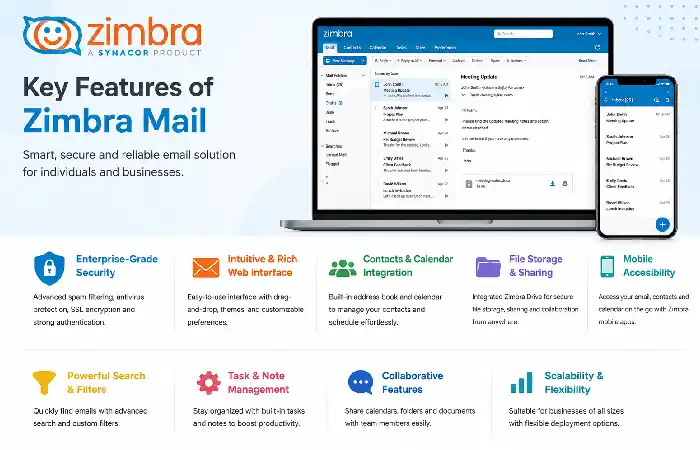
There are many ways in which the Zimbra Mail enables users to communicate and collaborate through features such as e-mail, calendars, contacts, tasks, and even the ability to share files. The ease of using the interface, security features, and the fact that the device can be used on desktop and mobile devices make the system appealing.
Email systems can support day-to-day communication, but businesses also rely on specialized tools for administrative tasks. Payroll management solutions can help businesses organize employee payment processes and reduce manual administrative work.
- Professional Email
Users can create custom domain email addresses such as:
- name@company.com
- support@company.com
- sales@company.com
- Modern Webmail Interface
Zimbra includes a clean web-based interface where users can:
- Read emails
- Send messages
- Organize folders
- Search conversations
- Manage attachments
- Use filters
- Calendar Management
The built-in calendar allows users to:
- Schedule meetings
- Invite participants
- Book conference rooms
- Create recurring events
- Share calendars
- Contact Management
Store:
- Personal contacts
- Company directories
- Shared address books
- Distribution lists
- Task Management
Users can organize projects with:
- To-do lists
- Deadlines
- Priorities
- Task categories
- Progress tracking
- Shared Collaboration
Teams can collaborate using:
- Shared folders
- Shared inboxes
- Shared calendars
- Shared contacts
Benefits of Using Zimbra Mail for Businesses
Zimbra Mail allows companies to enhance communication capabilities through email integration with calendar, contacts, and collaboration features, all in one package. The secure infrastructure and administration facilities help ensure proper data handling and access policy implementation. Thanks to its web, desktop, and mobile support, users are able to connect from almost any place they want.
Better Privacy
Companies have better control over their email infrastructure.
Lower Cost
When compared to other enterprise email packages, Zimbra can save licensing costs to a great extent, particularly for those with a larger number of users.
Flexible Implementation
Organizations can choose:
- Cloud hosting
- Private cloud
- Hybrid
- On-premises servers.
Cross-Platform Support
Users can access email from:
- Windows
- macOS
- Linux
- Android
- iPhone
- Tablets
Scalability
Whether managing:
20 employees
- 500 employees
- 20,000 users
Zimbra scales efficiently.
Zimbra Mail Interface Overview
The dashboard generally includes:
| Section | Purpose |
| Inbox | Incoming emails |
| Sent | Outgoing messages |
| Drafts | Saved emails |
| Spam | Junk mail |
| Trash | Deleted emails |
| Calendar | Meetings |
| Contacts | Address book |
| Tasks | To-do management |
| Briefcase | File storage |
Everything is available from a single interface.
Email mistakes can sometimes require quick action, especially when an incorrect message has already been sent. Learning how to recall an email in Outlook can help users understand the options available when they need to address a sent message.
How to Log In to Zimbra Mail
Accessing your account is straightforward.
Typical steps include:
- Open your organization’s Zimbra webmail URL.
- Enter your email address.
- Type your password.
- Click Sign In.
Depending on your organization, multi-factor authentication (MFA) may also be enabled.
Tips for Using Zimbra Mail More Efficiently
Users may be able to increase their productivity in Zimbra Mail by organizing their emails using folders and filters, arranging meetings using the built-in calendar, and finding emails and attachments with the help of search options. Passwords should be updated frequently, and security features should also be enabled.
| Tip | Benefit |
| Create folders and labels. | Keeps emails organized and easy to find |
| Use email filters | Automatically sorts incoming messages. |
| Utilize the calendar feature. | Simplifies meeting and event management |
| Enable notifications | Helps track important emails instantly |
| Use the search function. | Quickly find emails and attachments. |
| Regularly clean your inbox. | Improves mailbox performance and organization |
Zimbra Mail Administration
Administrators manage accounts through an administrative console.
Common tasks include:
- Creating users
- Resetting passwords
- Storage management
- Domain configuration
- Security policies
- Backup scheduling
- User permissions
Storage Management
Administrators can define mailbox quotas.
Storage can be allocated based on:
- Department
- User role
- Subscription plan
- Business requirements
Search Functionality
One of Zimbra’s strongest features is advanced email search.
Users can search by:
- Sender
- Recipient
- Subject
- Attachment
- Date
- Keywords
- Folder
- File type
Email Filters
Automatic rules can organize incoming mail.
Examples include:
- Move invoices into folders
- Flag VIP emails
- Archive newsletters
- Delete spam automatically
- Forward specific messages
Automation improves productivity.
Shared Mailboxes
Businesses often use shared mailboxes for departments like:
- Sales
- HR
- Finance
- Customer support
Multiple employees can manage a single inbox while maintaining accountability.
Zimbra Mail Backup Options
Organizations should regularly back up:
- Emails
- Contacts
- Calendars
- Tasks
- User settings
Backup strategies may include:
- Daily snapshots
- Incremental backups
- Cloud replication
- Off-site storage
Best Practices for Using Zimbra Mail
To maximize productivity:
- Use folders for organization.
- Enable two-factor authentication.
- Archive old emails.
- Regularly update passwords.
- Avoid suspicious attachments.
- Keep desktop and mobile apps updated.
- Use email filters.
- Back up important messages.
- Review mailbox quotas regularly.
Zimbra Mail vs Other Email Platforms
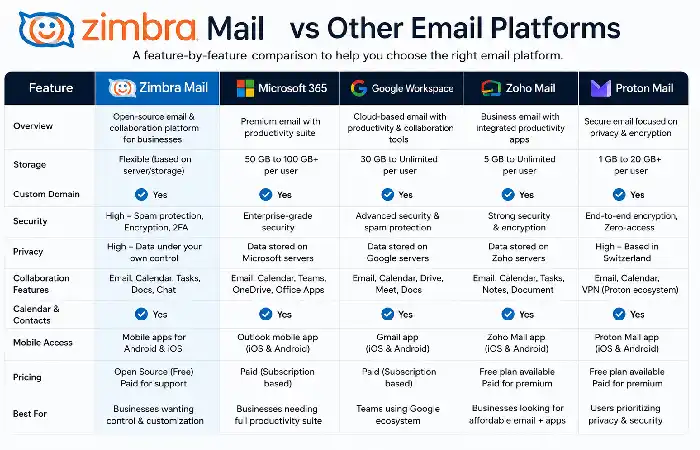
| Feature | Zimbra Mail | Gmail Workspace | Microsoft 365 |
| Custom Domains | Yes | Yes | Yes |
| On-Premises Option | Yes | No | Limited |
| Cloud Deployment | Yes | Yes | Yes |
| Shared Calendars | Yes | Yes | Yes |
| Collaboration Tools | Yes | Yes | Yes |
| Administrative Control | Excellent | Good | Excellent |
| Flexible Hosting | Excellent | Limited | Moderate |
Tips for Improving Email Productivity
Consider these habits:
- Keep your inbox organized with folders and labels.
- Schedule dedicated times for checking email.
- Use templates for common responses.
- Archive completed conversations.
- Unsubscribe from unnecessary mailing lists.
- Use calendar reminders for important follow-ups.
Zimbra Mail Mobile App Configuration Guide
The installation of the Zimbra Mail mobile application will make it possible for the user to have access to their emails, calendars, and contacts through their mobile device. Generally, the installation involves just the email address, password, and server details provided by the mail administrator of the organization.
Businesses looking to reduce repetitive work can also explore automation beyond their email platform. Proposal automation software for business strategy can help streamline proposal-related tasks and create a more efficient workflow.
Steps for Installing the Zimbra Mail Application on Mobile Devices
- Install the Zimbra Mail mobile application or the mail application present on your mobile device.
- Go to the application and click on “Add Account.”
- Type in your Zimbra email address and password.
- Type in the server details for incoming and outgoing emails, if required.
- Tick the boxes for email, contacts, and calendar synchronization.
- Save the settings and allow the application to synchronize.
- Ensure that you check whether you can send and receive emails.
Final Thoughts
Zimbra Mail is not just an email solution; it is a total teamwork solution that mixes messaging, calendaring, contacts, tasking, and document distribution within one integrated platform. The versatility of Zimbra Mail, the way it can be deployed, and the strong administration features make it a real choice for enterprises, educational facilities, health care facilities, and government agencies.
Zimbra Mail provides all the necessary tools to optimize the productivity of users while being fully in control of organizational information. By adhering to the best practices of security, data backups, and mailbox management, the organization will be able to develop a reliable and effective communication system.
Syeda Yasmeen is a Marketing & Digital Business Writer at MarketingInno with 5 years of writing experience. She covers digital marketing, SEO, content strategy, branding, social media, online business, and emerging digital trends.
View Author Profile →
Sameena Begum is a health, technology, and digital content reviewer who reviews selected articles to help ensure that information is presented clearly, accurately, and responsibly.
View Reviewer Profile →